Note: This post was generated with AI tools as a practical setup guide shipped with the Eyvan template. Follow it after cloning the repository and running bundle install for the first time.
Eyvan ships with demo content — placeholder names, example posts, and sample images — so you can see the template running immediately. This guide walks you through replacing all of it with your own content, in the order that matters. None of this requires touching the templates or SCSS.
Tip: This guide covers content setup only. When you are ready to change the brand color, fonts, or spacing, see the companion post Theming Eyvan, which explains Eyvan’s design tokens and a no-code color workflow built on Material Theme Builder.
The rule of thumb: everything about who you are lives in _data/. Everything about how Jekyll behaves and which site-wide assets are shared across templates lives in _config.yml. Your posts live in _posts/. Your images, fonts, and icons live in assets/.
Step 1 — The two required changes
Before anything else, open _config.yml and fix these two fields. Until you do, your deployed site will advertise incorrect URLs in canonical tags, Open Graph previews, and the sitemap.
url: "https://your-username.github.io"
baseurl: "/your-repository-name"
If you are deploying to a user or organization site (a repo named your-username.github.io), set baseurl to an empty string:
url: "https://your-username.github.io"
baseurl: ""
If you are using a custom domain, set url to the domain and keep baseurl empty:
url: "https://yourdomain.com"
baseurl: ""
That is all you need to change for a first deploy. Everything else below is about personalizing the content.
Step 2 — Site identity in _config.yml
Open _config.yml and update the fields under the Site metadata section:
title: "Your Name or Site Title"
description: "One sentence that describes your site — used in search and social previews."
author:
  name: "Your Name"
  email: "hello@example.com"
  uri: "https://example.com"
The title and description values appear in the browser tab title, SEO metadata, feeds, and social previews. The nested author block is kept in _config.yml because jekyll-feed reads site.author from there. The visible theme identity still comes from _data/author.yml, so keep the two places aligned when you customize the template.
The same file also stores a few site-wide assets and links:
default_og_image: "assets/images/og-default.webp"
logo: "assets/images/logo.svg"
cv_url: "assets/files/resume.pdf"
default_og_image is the fallback social preview image for pages that do not set their own image. logo is global brand chrome used by the shared brand include, so it belongs with site-level metadata rather than the homepage hero. cv_url is also global because the social-links include can render the CV action in the header, mobile menu, and footer. If you also want the homepage hero button to download the same file, set the matching CTA link in _data/hero.yml.
Enabling analytics
If you want Google Analytics, paste your Measurement ID (the string that starts with G-) into this field:
google_analytics: "G-XXXXXXXXXX"
Leave it blank (or remove it) to disable analytics entirely. No tracking request is made when the field is empty.
Reading time
Reading time is estimated automatically from the word count of each post. Two global knobs control it:
read_time: true           # show or hide reading time on posts
words_per_minute: 238     # reading speed used for the estimate
Set read_time: false to hide the reading-time display site-wide.
Step 3 — Your profile in _data/author.yml
This file drives your name, role, biography, avatar, and contact information wherever they appear — the homepage hero, post metadata, and the about page.
name: "Your Full Name"
role: "Your Title or Role"
location: "City, Region, Country"

avatar: "assets/images/avatar.webp"

bio: >-
  A short paragraph about yourself. This appears in the homepage hero
  and any author block the template renders. Markdown is not supported here —
  keep it to plain text.

email: "you@example.com"
Replace assets/images/avatar.webp with your own portrait (see Step 7). The bio field supports the YAML block scalar (>-) so you can write longer text without escaping quotes.
Step 4 — Homepage hero in _data/hero.yml
The hero section at the top of the homepage is driven entirely by this file. Open it and replace the placeholder text:
eyebrow: "Portfolio"               # small label above the headline (optional)
title_lead: "Hi there, I am"
description_html: >-
  <p><strong>Your Professional Title</strong> based in
  <strong>City, Region, Country</strong>. Write 1–2 sentences here describing
  your practice, research, or portfolio focus.</p>

image: "assets/images/hero-placeholder.webp"
image_alt: "A photograph or illustration representing you or your work"

cta_button_primary_text: "Download my resume"
cta_button_primary_link: "assets/files/resume.pdf"
cta_button_secondary_text: "See my work"
cta_button_secondary_link: "/projects/"
The eyebrow is optional — delete it or leave it blank if you do not want the small label. The author name in the headline still comes from _data/author.yml; title_lead only controls the words before the name. The CTA fields define the two buttons in the hero.
Step 5 — Navigation in _data/navigation.yml
This file controls the links in the site header and mobile menu. The default ships with four entries:
main:
  - title: "Home"
    url: "/"
    external: false

  - title: "About"
    url: "/about/"
    external: false

  - title: "Projects"
    url: "/projects/"
    external: false

  - title: "Contact"
    url: "/contact/"
    external: false
Edit the title and url for each entry. Keep internal URLs baseurl-safe by writing them as site-relative paths such as /projects/; the navigation include applies relative_url for you.
external is only needed when a navigation item should open in a new tab. The include also treats absolute URLs and PDF links as new-tab links automatically, but keeping external: true on intentional off-site links makes the data file easier to read.
Development-only navigation is kept separately in
_data/test-navigation.yml. When dev_only: true is set in _config.yml, the
navigation include appends its Tests entry to the public links above. Keep that
file separate so production navigation remains focused and the demo site does
not expose development-only surfaces.
Step 6 — Social and share links
_data/social-links.yml
Each key in this file adds an icon link to the social bar in the site header, mobile menu, footer, and about page. The shipped demo includes every platform supported by the current include. To remove a platform, comment out or delete its key. To update a platform, replace the placeholder URL:
github: "https://github.com/your-username"
linkedin: "https://www.linkedin.com/in/your-profile"
x: "https://x.com/your-handle"
youtube: "https://www.youtube.com/@your-channel"
instagram: "https://www.instagram.com/your-handle"
scholar: "https://scholar.google.com/citations?user=your-id"
orcid: "https://orcid.org/0000-0000-0000-0000"
medium: "https://medium.com/@your-handle"
Supported social-link keys out of the box are github, linkedin, instagram, youtube, x, scholar, orcid, and medium. The CV action is separate and comes from cv_url in _config.yml.
_data/share.yml
Controls which actions appear in the share bar on posts. The shipped demo renders X, LinkedIn, Pinterest, email, print, and native share actions. Pinterest is skipped automatically on posts without an image, because it needs an image URL to build a useful pin.
Remove entries for platforms you do not want to offer. If you add a new share platform, add a matching branch in _includes/post-share.html so the include knows how to build that platform’s share URL.
Step 7 — Replacing visual assets
All visual assets live under assets/. Replace them at the same paths and Eyvan’s templates will automatically use your new files.
| Asset |
Path |
Recommended size |
Used for |
| Avatar |
assets/images/avatar.webp |
300 × 300 px |
Hero, post meta |
| Hero image |
assets/images/hero-placeholder.webp |
800 × 800 px or similar |
Homepage hero |
| Logo |
assets/images/logo.svg |
Preserve or update the SVG viewBox |
Header logo mark |
| OG fallback |
assets/images/og-default.webp |
1200 × 630 px |
Social previews on posts without a cover |
| Favicon |
assets/favicon/favicon.ico + PNG variants |
Per standard sizes |
Browser tab, bookmarks |
Use WebP for photos and illustrations to keep file sizes small. For the OG image, a 1200 × 630 px WebP at quality 80 is the recommended target — it is the size Facebook, X, and LinkedIn expect.
The logo is an SVG rather than a raster image. When replacing it, keep a
viewBox that tightly contains the new artwork so the header can scale the
mark responsively without clipping or relying on fixed pixel dimensions.
Creating and installing your favicon
A favicon is the small icon browsers show in tabs, bookmarks, history, and
some home-screen shortcuts. You can create a complete favicon package with
favicon.io:
- Choose PNG → ICO, Text → ICO, or Emoji → ICO and generate your
favicon.
- Download and extract the generated package.
- Replace the matching files in
assets/favicon/:
favicon.ico, favicon-16x16.png, favicon-32x32.png,
apple-touch-icon.png, android-chrome-192x192.png, and
android-chrome-512x512.png.
- Also replace the root-level
favicon.ico. Eyvan keeps this compatibility
copy for browsers and tools that request /favicon.ico directly.
Keep the existing filenames so _includes/head.html can continue loading the
icons without template changes. You do not need to paste favicon.io’s HTML
snippet into the site because Eyvan already includes the required <link>
elements.
Open assets/favicon/site.webmanifest after copying the package and update the
site identity and install-screen colors:
{
  "name": "Your Website Name",
  "short_name": "Your Site",
  "icons": [
    {
      "src": "android-chrome-192x192.png",
      "sizes": "192x192",
      "type": "image/png"
    },
    {
      "src": "android-chrome-512x512.png",
      "sizes": "512x512",
      "type": "image/png"
    }
  ],
  "theme_color": "#4f46e5",
  "background_color": "#ffffff",
  "display": "standalone"
}
name is the full website name, while short_name is the compact label used
when space is limited. theme_color controls supported browser or installed-app
interface colors, and background_color is used behind the app while it
launches. These values do not recolor the pixels inside the favicon images; to
change the favicon artwork or its colors, regenerate the images on favicon.io
and replace the files.
Keep the icon src values relative as shown above. Do not add a leading /,
because root-relative paths break when the template is published under its
default /eyvan base URL.
Understanding and replacing the Open Graph image
An Open Graph (OG) image is the preview image shown when a page is shared on
services such as Facebook, LinkedIn, Discord, and Slack. Eyvan also uses the
same resolved image for its Twitter/X card metadata. A clear 1200 × 630 px
image works well across these platforms.
assets/images/og-default.webp is the fallback Open Graph image used when a page or post does not define its own image. Replace it with a 1200 × 630 px image that includes your name, site title, or a recognizable visual identity. Then confirm _config.yml still points to it:
default_og_image: "assets/images/og-default.webp"
If assets/images/og-default.webp is missing, add your image at that path or
store it elsewhere under assets/images/ and update default_og_image. Keep
the path relative and omit a leading / so Jekyll can generate a baseurl-safe
absolute URL for social platforms.
Individual pages and posts can override the fallback with a purpose-built
social image:
og_image: "assets/images/posts/your-social-preview.webp"
image_alt: "Describe the social preview image"
If og_image is absent, Eyvan next uses the regular image front matter value:
image: "assets/images/posts/your-post-cover.webp"
image_alt: "Describe the image for screen readers"
image_width: 1200
image_height: 630
Use the cover’s exact pixel dimensions for image_width and image_height.
Providing both values lets the browser reserve the correct space before the
image loads; omit both when you do not know them.
The resolution order is og_image, then image, then
site.default_og_image. This lets you use one image as a visible post cover
and a different 1200 × 630 px image for social sharing when needed.
If you already have images in JPEG or PNG, you can convert them with cwebp, which is part of the webp package:
cwebp -q 80 -resize 300 0 your-avatar.jpg -o assets/images/avatar.webp
If you prefer a browser-based tool, Squoosh is a practical option for previewing compression settings before downloading the converted image.
Eyvan ships demo media in modern web formats because they usually reduce transfer size without changing the authoring workflow:
- WebP works well for site images because it supports lossy and lossless compression, transparency, and broad browser support.
- Opus works well for self-hosted audio because it gives strong quality at small file sizes and is a good general-purpose web audio codec.
- WebM works well for self-hosted video because it is an open web container designed for efficient browser playback, commonly paired with VP9 or AV1 video and Opus audio.
Keep original source files outside the published site if you need them for editing later. The optimized files in assets/ should be the web-ready versions visitors download.
Step 8 — Replacing demo posts
The _posts/ directory ships with demo content written to showcase the template. Replace it with your own writing before publishing.
The simplest workflow:
- Delete the demo posts you do not want (or move them out of
_posts/).
- Create a new file following the naming pattern:
_posts/YYYY-MM-DD-your-post-slug.md.
- Add front matter at the top (see the Front Matter Field Reference post for all options).
- Write your content below the closing
---.
A minimal post looks like this:
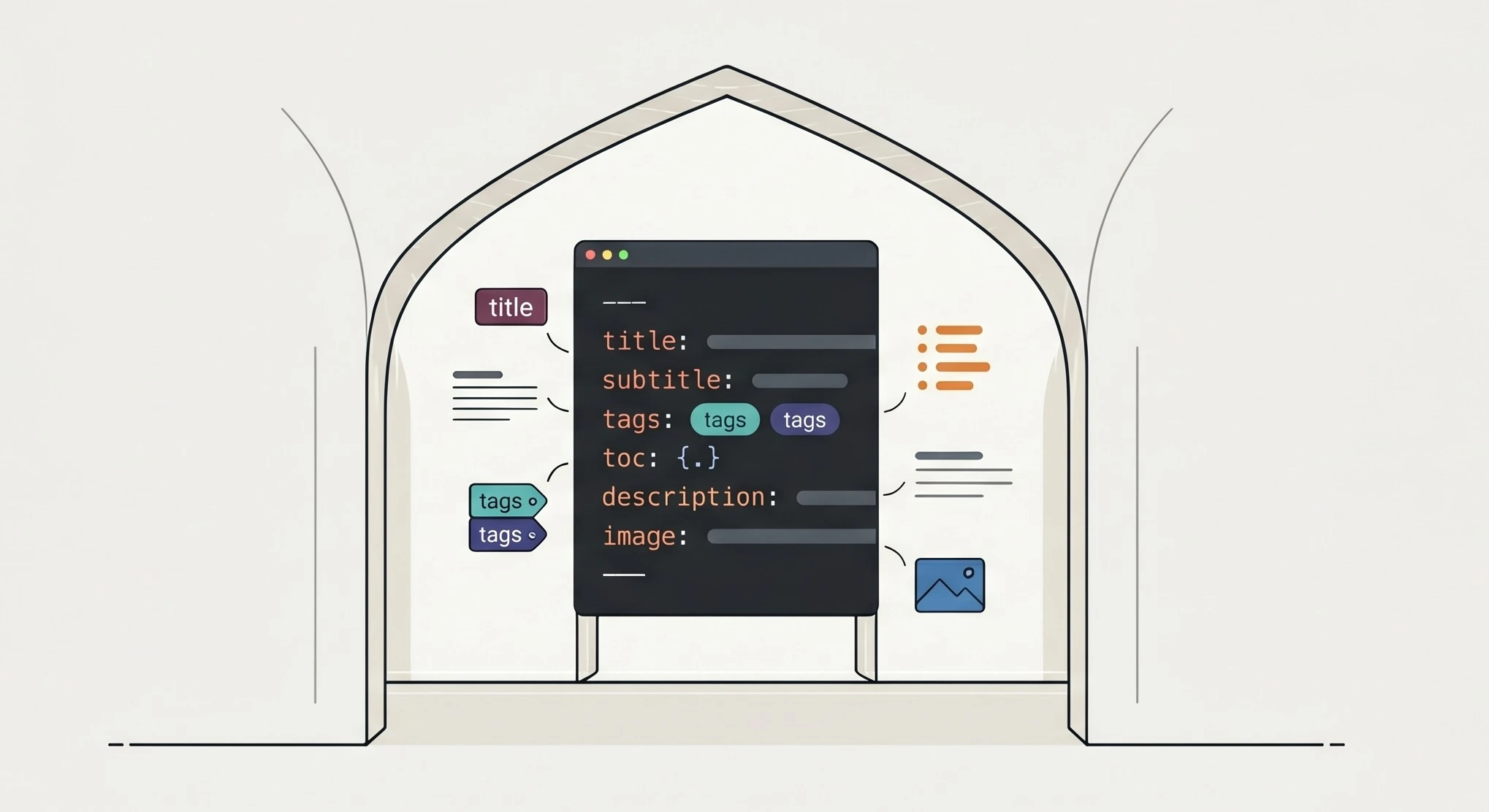
---
title: "My First Post"
description: "A short description for cards and search previews."
tags: [writing]
---

Your content starts here.
For cover images, add:
image: "assets/images/posts/your-image.webp"
image_alt: "Describe the image for screen readers"
image_width: 1200
image_height: 630
image_srcset: |
  assets/images/posts/your-image-640.webp | 640w
  assets/images/posts/your-image-960.webp | 960w
  assets/images/posts/your-image.webp | 1200w
image_sizes: "(min-width: 72rem) 60rem, 100vw"
Responsive variants remain optional. When a post or page includes unusually
large imagery, generate a small set of alternate widths ahead of time and list
them in image_srcset. One practical no-bundler workflow is:
cwebp -q 80 -resize 640 0 your-image.png -o assets/images/posts/your-image-640.webp
cwebp -q 80 -resize 960 0 your-image.png -o assets/images/posts/your-image-960.webp
cwebp -q 82 your-image.png -o assets/images/posts/your-image.webp
Use exact source dimensions for image_width and image_height, and keep the
largest variant as the plain image path so older browsers still receive a
complete fallback.
If a post has a lot of headings, enable the sidebar table of contents:
The footer text — copyright notice, tagline, or links — is driven by this file. The default is a simple copyright line:
copyright: "© 2025 Your Name. All rights reserved."
You can also add secondary links here, such as a privacy policy or a terms page. See the comments in the file for the supported fields.
Next — making it look like yours
Everything above is content: the words, links, images, and posts that make the
site yours. None of it requires touching SCSS, and on the shipped palette and
type system it is enough for a polished first deploy.
When you want to change the look — the brand color, the fonts, or the
spacing rhythm — that lives in the design tokens under _sass/0-settings/. It
is a separate, slightly more technical task, so it has its own walkthrough:
Theming Eyvan. Start there once your content is in place. It covers a no-code
brand-color workflow built on Material Theme Builder, plus where the fonts and
spacing scale live.
Quick checklist
Run through this before your first deploy:
After deploy, verify that your canonical URL and Open Graph previews show your domain, not the demo site URL. Use opengraph.xyz or a similar tool to preview how your pages appear when shared on social platforms.
Endnotes