Note: This post was generated with AI tools for the sole purpose of demonstrating the rich typographic and mathematical capabilities of the Eyvan template.
Front matter is the small YAML block at the top of a Jekyll page or post. It sits between two lines of three dashes and tells Jekyll how to process the file before it becomes HTML. In this template, front matter controls the page layout, post header, metadata, table of contents, social previews, MathJax loading, cover images, tags, cross-reference numbering, and sharing behavior.
Think of front matter as configuration for one content file. _config.yml defines global site settings, layout defaults, plugin behavior, and build settings. Front matter defines the exceptions and content-specific values for an individual post or page. When Jekyll builds the site, it reads the YAML first, stores those values on the page object, and then makes them available to Liquid templates such as _layouts/post.html, _includes/head.html, _includes/math.html, and the post card or metadata includes.
This post is a practical reference for the front matter fields supported by this template. It is written for future posts, documentation pages, project write-ups, and long-form technical notes. The goal is simple: you should be able to open a blank Markdown file, add the right fields, and know exactly what each key changes on the rendered page.
Note: This guide focuses on fields that are used by the current template. Jekyll itself supports many more patterns, but adding fields that no layout or include reads will not change the page unless you also update the template.
Front matter basics
A post begins with a YAML block like this:
---
title: "Front Matter Field Reference"
subtitle: "Every supported key, what it does, and when to use it"
tags: [documentation, jekyll, reference, technical-writing]
toc: true
crossrefs: true
description: "A complete reference guide for all supported front matter fields in this Jekyll template."
---
Everything between the opening and closing --- is parsed as YAML. Everything after the closing --- is the body of the post. The body can use Markdown, HTML, Liquid includes, fenced code blocks, tables, blockquotes, footnotes, and any other syntax supported by the site’s Markdown engine.
In this template, posts live in _posts/ and usually follow the filename pattern:
For this article, the file is saved as:
_posts/2026-06-10-eyvan-front-matter-guide.md
Because _config.yml sets defaults for posts, you usually do not need to write layout: post manually. Jekyll applies it automatically to files in the posts collection. You can still write it explicitly if you want the file to be self-documenting.
How Jekyll processes front matter
Jekyll processes a post in a predictable order.
- It reads the YAML front matter.
- It merges any matching defaults from
_config.yml.
- It renders Liquid variables and includes.
- It converts Markdown to HTML with kramdown.
- It wraps the result in the selected layout.
- It writes the final HTML into the generated site.
That order matters. For example, when a post sets math: true, the post body is rendered as usual, but the global layout also includes the MathJax loader because _includes/math.html checks page.math. When a post sets image, the post layout uses it as a cover image, and the head include can reuse the same value for Open Graph and Twitter preview metadata. When a post sets toc: true, the post layout exposes mobile and desktop table-of-contents areas that can be populated by the TOC include. When a post sets crossrefs: true, the base layout loads the script that turns ref.html links into numbered figure and table references.
Tip: Treat front matter as a post-level API. The Markdown body should hold the content; front matter should describe how the template should present that content.
Layout fields
Layout fields determine which template wraps the content and how the page is positioned inside the site.
Layout-related front matter fields.
| Field |
Type |
Default |
Used by |
What it does |
layout |
string |
post for posts, default globally |
_layouts/*.html |
Selects the layout that wraps the page content. |
permalink |
string |
Site permalink pattern |
Jekyll routing |
Overrides the generated URL for a specific page or post. |
title |
string |
none |
Post, page, head, cards |
Main page title and browser/social title. |
subtitle |
string |
none |
Post and page headers |
Optional supporting text below the title. |
For normal posts, the most important layout field is title. The post layout renders it as the main h1, while the head include uses it for the document title and social metadata. subtitle is optional, but it is useful for documentation posts because it clarifies scope without making the title too long.
Use layout only when you want to override the default. For example, a static About page uses layout: page, while the homepage uses layout: homepage. A post can rely on the default post layout unless you are testing another layout.
---
layout: post
title: "Building a Token-Bucket Rate Limiter"
subtitle: "Design, implementation, and benchmarks in Python and Go"
---
Warning: Do not use layout: default for long-form posts. The default layout only provides the site shell. The post layout adds the post header, tags, metadata row, optional cover image, TOC placement, post navigation, and related posts.
Search Engine Optimization (SEO) and social preview fields
Search Engine Optimization (SEO) fields help the page appear correctly in search engines, feeds, and social previews. The template centralizes this behavior in the head include, so most pages only need a good title, description, and optional image.
SEO and social preview front matter fields.
| Field |
Type |
Default |
Used by |
What it does |
title |
string |
Site title fallback |
<title>, Open Graph, Twitter |
Defines the page title. |
description |
string |
site.description |
Meta description, Open Graph, Twitter |
Short summary for search and previews. |
og_image |
string |
none |
Open Graph, Twitter |
Overrides the social preview image without adding a visible post cover or card image. |
image |
string |
site.default_og_image or placeholder for social previews; none for the post cover |
Post cover, post cards, Open Graph, Twitter |
Provides the preferred social preview image and renders a post cover when set. |
image_alt |
string |
page.title |
Post/page image alt text |
Provides accessible text for the cover image. |
image_width |
integer |
none |
Post cover, page image, post cards, post navigation |
Adds the image’s intrinsic pixel width so browsers can reserve layout space. |
image_height |
integer |
none |
Post cover, page image, post cards, post navigation |
Adds the image’s intrinsic pixel height so browsers can reserve layout space. |
image_srcset |
string block |
none |
Post cover, page image, post cards, post navigation |
Declares optional responsive image candidates as newline-delimited path | width rows. |
image_sizes |
string |
none |
Post cover, page image, post cards, post navigation |
Declares the optional sizes hint paired with image_srcset. |
image_position |
string |
CSS default |
Post cover |
Sets the cover image object-position, such as center top or 50% 35%. |
A strong description should be specific, concise, and readable outside the page context. Aim for one sentence. Avoid keyword lists. Good descriptions explain what the reader will learn.
description: "A complete reference guide for all supported front matter fields in this Jekyll template."
The image field has several roles. In the post layout, it renders a full-width cover image above the article header. In post cards, it becomes the card image. In the head include, it becomes the social preview image. That makes it powerful, but it also means you should use it intentionally. If you want a header-only documentation post, omit image and let the head include fall back to site.default_og_image for social previews.
Use og_image when a page needs a purpose-built social preview without a
visible cover or when its social artwork should differ from its cover. Social
metadata resolves images in this order: og_image, then image, then
site.default_og_image. The og_image value does not render in the post header
or archive card.
og_image: "assets/images/posts/social-preview.webp"
image: "assets/images/posts/token-bucket-diagram.webp"
image_alt: "Token bucket rate limiter system diagram"
image_width: 1200
image_height: 630
image_srcset: |
  assets/images/posts/token-bucket-diagram-640.webp | 640w
  assets/images/posts/token-bucket-diagram-960.webp | 960w
  assets/images/posts/token-bucket-diagram.webp | 1200w
image_sizes: "(min-width: 72rem) 60rem, 100vw"
image_position: "center center"
When you know the cover’s real pixel dimensions, add both image_width and
image_height. The browser uses the resulting intrinsic aspect ratio to
reserve space before the image downloads. Do not estimate these values, and
omit both fields when the dimensions are unknown.
image_srcset is optional. When you pre-generate alternate widths, write one
candidate per line using path | descriptor, and pair it with image_sizes
when you want the browser to choose among width-based variants intelligently.
Each path is passed through relative_url, so the final output stays
baseurl-safe.
The image_alt field should describe the meaningful content of the image, not repeat the file name or stuff keywords into the page. Good alt text is useful for screen-reader users, slow connections, broken image states, and anyone who needs the image content expressed in words. For decorative images, the template currently falls back to the page title, so it is better to write a short meaningful description whenever image is set.
A good image_alt usually answers: what is shown, what matters about it, and why it is relevant to the page. Keep it concise. Do not start with phrases like “image of” or “picture of” unless the medium itself matters.
image: "assets/images/posts/front-matter-cover.webp"
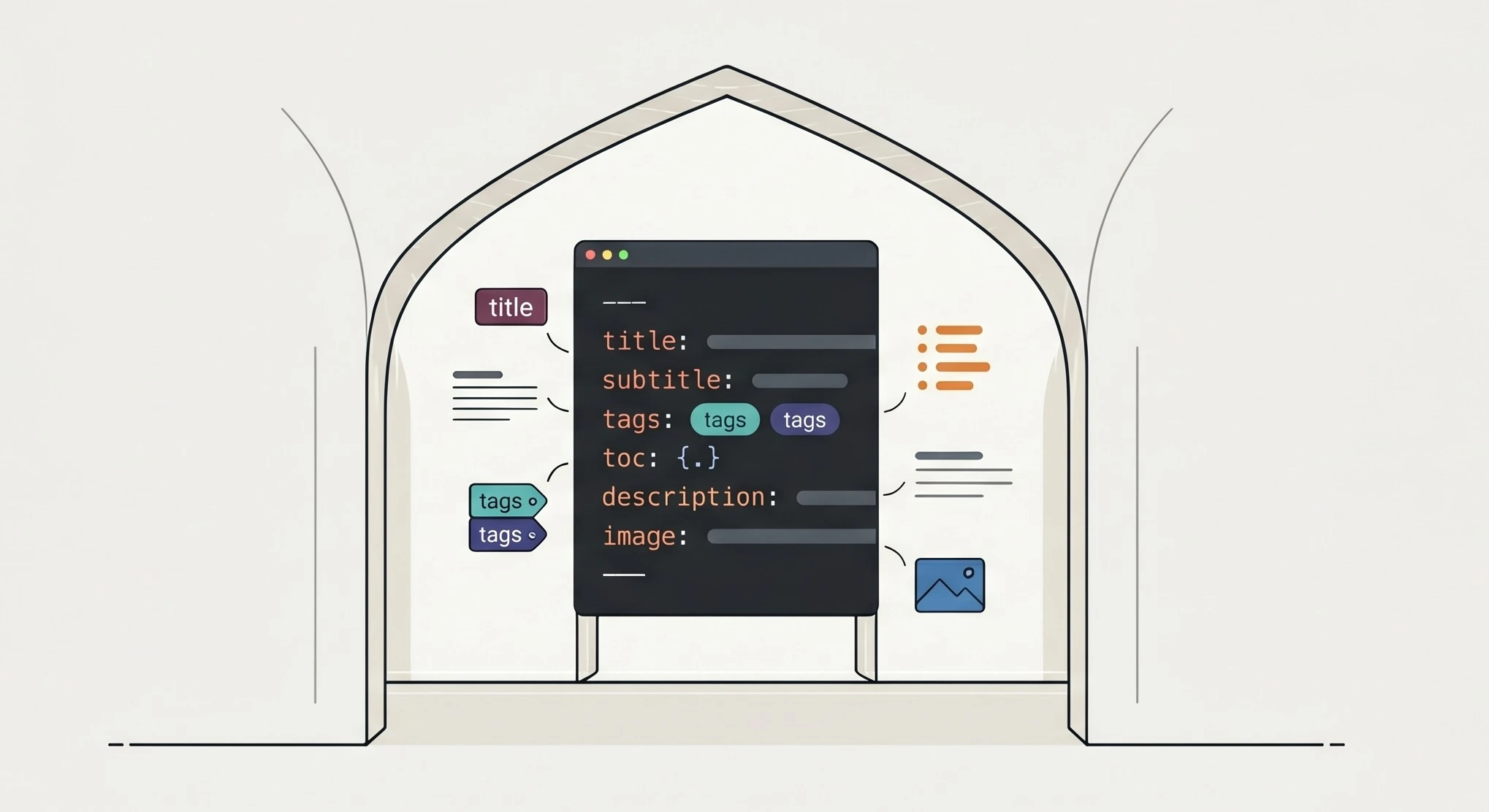
image_alt: "An Eyvan-style arch framing a code editor with Jekyll front matter keys"
Tip: If the cover image contains important text, include the text or its meaning in image_alt. If the image is only decorative, consider whether the post needs a cover image at all.
Display fields
Display fields control what appears in the post header and archive cards. They do not usually change the body content, but they strongly affect navigation and scanning.
Display and metadata front matter fields.
| Field |
Type |
Default |
Used by |
What it does |
tags |
array |
none |
Post header, project archive, tag pages |
Groups posts and creates tag navigation. |
author |
string |
template-dependent |
Entry metadata |
Displays one author when metadata includes it. |
authors |
array |
template-dependent |
Entry metadata |
Displays multiple authors when supported. |
avatar |
string |
none |
Entry metadata |
Optional author image in post metadata. |
date |
date |
Filename date for posts |
Entry metadata, ordering |
Controls publication date and post sorting. |
Tags are especially important in this template because the Projects page groups content around posts, cards, and tag archives. Use a small, consistent set of tags. For example, prefer technical-writing everywhere instead of mixing technical-writing, tech-writing, and docs.
tags: [documentation, jekyll, reference, technical-writing]
Use author when a post has one explicit byline that differs from the site-wide default author. This is useful for guest posts, edited notes, or a portfolio template demo where you want to show how attribution works.
author: "John Michael Doe"
Use avatar when the metadata row should show an author image. The post layout passes show_avatar=true to the entry metadata include, so an avatar can appear where the metadata include supports it. Store avatar images in a predictable location, such as assets/images/authors/, and keep them small and square.
author: "John Michael Doe"
avatar: "assets/images/authors/john_doe.webp"
Use authors when a post has multiple credited contributors. Keep names short and consistent, because they may appear in compact metadata areas such as post headers or cards depending on the include implementation.
authors:
  - "John Michael Doe"
  - "Jane Mary Smith"
For ordinary personal portfolio posts, you can usually omit author, authors, and avatar and let the template use the site-wide author data. Add them only when the post needs custom attribution.
The post date usually comes from the filename. A file named 2026-04-01-my-first-post.md automatically has the date April 1, 2026. You can still set date manually if you need a specific time, but the filename is cleaner for most posts.
date: 2026-04-01 09:00:00 -0500
Tip: Keep tags lowercase and hyphenated. They become part of tag archive URLs, so technical-writing is more predictable than Technical Writing.
Feature fields
Feature fields are boolean switches. They turn optional behavior on or off for a single page.
Feature-toggle front matter fields.
| Field |
Type |
Default |
Used by |
What it does |
toc |
boolean |
none/false |
Post TOC includes |
Enables the table of contents experience for long posts. |
math |
boolean |
false |
_includes/math.html |
Loads MathJax only on pages that need LaTeX math. |
crossrefs |
boolean |
false |
_includes/scripts.html |
Loads the script that resolves ref.html links to numbered table and figure references. |
share |
boolean |
true for posts |
Post header |
Shows or hides the share controls. |
Use toc: true for long posts with several ## and ### headings. The post layout includes mobile and desktop TOC wrappers, and the current TOC includes only second- and third-level headings. This is especially useful for documentation, architecture notes, and tutorials.
Use math: true only when the post contains LaTeX-style math. The MathJax
include is guarded by page.math, so leaving it off avoids loading the
third-party runtime unnecessarily. Eyvan loads an exact, integrity-protected
MathJax CDN release rather than a rolling major-version URL.
Use crossrefs: true when the post uses {% include ref.html %} to point to numbered figures, videos, audio blocks, or tables. This is a page-level switch: it loads the script that resolves reference links from raw ids into labels such as “Figure 1” or “Table 2.” It does not control whether an individual figure, table, video, or audio block is counted.
Use share: false when sharing controls would be distracting or unnecessary. For example, a private test post, internal reference page, or draft-style note might not need them.
Reading time is currently controlled globally in _config.yml, not by individual post front matter. The metadata include checks site.read_time and site.words_per_minute.
read_time: true
words_per_minute: 238
Tip: Reading time is an estimate, not a promise. It is most useful when the post is primarily prose. For media-heavy posts, use the introduction to set expectations instead.
Warning: Do not enable math: true globally unless almost every page uses math. Conditional loading is better for performance and keeps simple posts simple.
Supported fields by content type
Different content types need different front matter. A short page, a long documentation post, and a visual project should not all use the same fields.
Recommended fields by content type.
| Content type |
Recommended fields |
Usually omit |
| Short static page |
layout, title, permalink, description |
toc, math, image |
| Documentation post |
title, subtitle, tags, toc, description |
image unless visual |
| Math-heavy post |
title, tags, math, toc, description |
image if not needed |
| Cross-referenced post |
title, tags, toc, crossrefs, description |
math unless needed |
| Visual project |
title, subtitle, tags, image, image_alt, description |
math |
| Private/dev test |
title, tags, share: false |
image, math |
The best front matter is not the longest. It is the smallest set of fields that accurately describes the content and activates the features the post needs.
Creating your first post
Follow this process when adding a new post to the template.
-
Create a new Markdown file in _posts/.
_posts/2026-04-01-my-first-post.md
-
Add the required front matter.
---
title: "Front Matter Field Reference"
subtitle: "Every supported key, what it does, and when to use it"
tags: [documentation, jekyll, reference, technical-writing]
toc: true
crossrefs: true
description: "A complete reference guide for all supported front matter fields in this Jekyll template."
---
-
Write a clear opening paragraph before the first heading.
This gives readers context immediately and keeps the post card description from doing all the explanatory work.
-
Add headings in a logical order.
Use ## for major sections and ### for subsections. A table of contents is only helpful when the heading structure is clean.
-
Add tables, code blocks, or callouts where they help the reader.
Use tables for reference material, fenced code blocks for examples, and blockquotes for notes or warnings.
-
Run the site locally.
-
Check the generated page on desktop and mobile.
Confirm that the title, subtitle, tags, metadata, TOC, and body spacing all look correct.
-
Commit and push the post.
git add _posts/2026-04-01-my-first-post.md
git commit -m "Add front matter reference guide"
git push origin main
If your default branch is not main, replace main with your actual branch name.
Minimal vs full front matter
Use the minimal version for ordinary posts. Use the full version when you need every major feature.
Minimal vs full front matter.
| Minimal front matter |
Full front matter |
| Good for short posts, notes, and simple project updates. |
Good for polished long-form posts with custom metadata and feature toggles. |
Minimal:
---
title: "A Short Project Note"
tags: [projects, notes]
description: "A short update about a recent project."
---
Full:
---
layout: post
title: "Design Philosophy and Architecture of Eyvan"
subtitle: "How the template is structured and why it was built this way"
tags: [meta, design, jekyll, css, architecture]
date: 2026-06-12 09:00:00 -0500
toc: true
math: false
crossrefs: true
share: true
image: "assets/images/posts/khane-amerian-eyvan.webp"
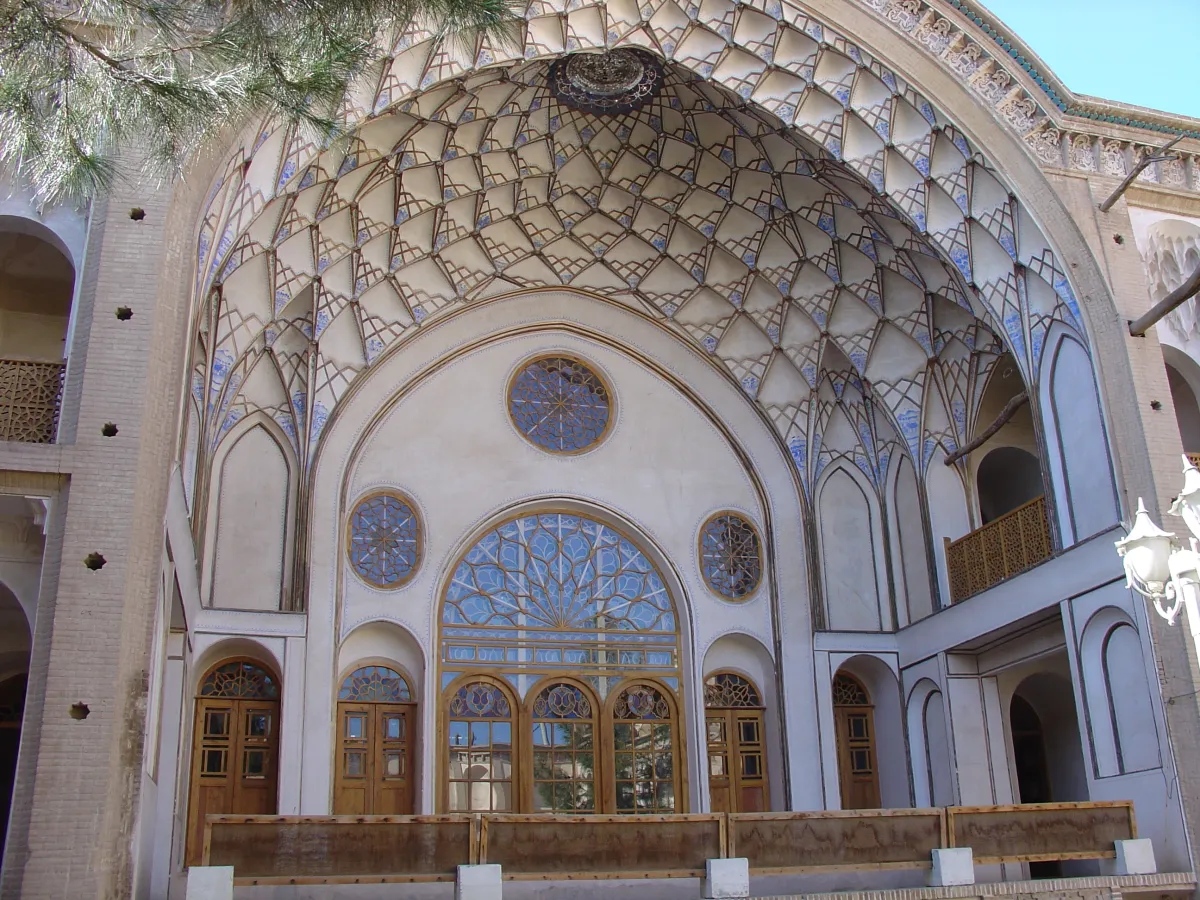
image_alt: "Muqarnas-adorned eyvan courtyard facade at the historic Ameri House in Kashan, Iran"
image_position: "center center"
description: "A behind-the-scenes look at the design decisions, CSS architecture, layout system, and feature set of this template."
---
The minimal version relies on defaults. The full version is more explicit. Both are valid, but the minimal version is easier to maintain when the defaults already match your intent.
Markdown examples
Use inline code when referring to field names such as title, subtitle, tags, toc, and description. Use fenced YAML blocks when showing complete front matter examples. This keeps the writing scannable and makes the post useful as a reference.
Eyvan also includes reusable Liquid snippets for rich Markdown content. Prefer these includes over hand-written HTML because they keep captions, numbering, cross-references, layout classes, and accessibility behavior centralized.
Tables with captions
Use table-caption.html immediately before a Markdown table when the table needs a visible caption and an anchorable id.
{% include table-caption.html
   caption="A short caption for the table."
   id="tbl-example"
%}

| Field | Purpose |
| :--- | :--- |
| `title` | Main title |
| `description` | SEO summary |
{: .c-prose-table }
The caption value is the human-readable table title. The id value is the stable anchor used for links and cross-references.
Important: Put {: .c-prose-table } directly after the final table row with no empty line between them. In kramdown, that attribute line attaches the c-prose-table class to the table. If you leave a blank line, the table may render without the template’s table styling.
Use figure.html for images that belong to the article body. This is better than plain Markdown image syntax when you need a caption, figure numbering, a cross-reference target, or consistent responsive media styling.
{% include figure.html
   src="assets/images/posts/token-bucket-diagram.webp"
   alt="Token bucket rate limiter system diagram"
   caption="A reusable image figure with an optional numbered caption."
   id="fig-example"
%}
Common options include src, alt, caption, and id. Use alt for accessibility and caption for visible explanatory text. Use a stable id such as fig-rate-limiter-diagram if you want to link to the figure later.
If the include supports figure numbering, you can usually disable numbering for decorative or supporting images with numbered="false".
{% include figure.html
   src="assets/images/posts/front-matter-cover.webp"
   alt="Eyvan arch framing a code editor with front matter keys"
   numbered="false"
%}
Important: Images, videos, and audio blocks are numbered as figures by default. Use numbered="false" only when a captioned media item is decorative, supporting, or otherwise not meant to be counted or referenced. Do not use ref.html to reference an item marked numbered="false", because that item is intentionally excluded from the numbering system.
Use the images parameter instead of src when one caption and one figure number should cover two or more related images side by side — for example, a before/after pair or a set of photos from the same scene. Each image is one line inside images, and the lines are separated by pipes (|) into up to five segments:
path | alt text | WxH | srcset row | sizes
| Segment |
Required |
Purpose |
path |
Yes |
Image source, same as src for a single image |
alt |
Yes |
Per-image alt text — each image in the grid needs its own |
WxH |
No |
Intrinsic pixel dimensions (e.g. 900x600), used the same way as width/height on a single image to reserve layout space and prevent shift |
| srcset row |
No |
One responsive candidate for that image, in path \| descriptor form, same convention as responsive_srcset |
| sizes |
No |
A sizes attribute for that image’s srcset |
Only path and alt are required per image — the dimension, srcset, and sizes segments can be omitted on any line where you don’t have that information yet.
A two-image grid with full captions and cols set to control the grid width:
{% include figure.html
   id="fig-grid-example"
   cols="2"
   caption="Shared caption describing both images together."
   images="
     assets/images/posts/example-a.webp | First image alt text  | 900x600
     assets/images/posts/example-b.webp | Second image alt text | 900x600
   "
%}
cols="2", "3", or "4" controls how many columns the grid uses on wide viewports; on narrow viewports the images stack to a single column regardless of cols. The caption and id behave exactly as they do for a single image — one shared caption and one figure number for the whole grid, not one per image.
Use video.html for self-hosted videos or third-party embeds. Videos share the same figure counter, so they can be referenced like other figures when they have an id and numbered caption.
Self-hosted video:
{% include video.html
   src="assets/videos/posts/geysir-iceland-2023-erupting-geyser-strokkur.webm"
   poster="assets/images/posts/geysir-iceland-2023-erupting-geyser-strokkur.webp"
   ratio="16-9"
   caption="A short demonstration of the project interaction."
   id="fig-demo-video"
%}
Multiple self-hosted formats:
{% include video.html
   ratio="16-9"
   caption="The same video provided in WebM and MP4 formats."
   id="fig-demo-video-formats"
   src="
     assets/videos/posts/demo.webm | video/webm
     assets/videos/posts/demo.mp4  | video/mp4
   "
%}
The multiple-format paths above are placeholders. Replace them with actual files in your repository.
Third-party embed:
{% include video.html
   embed="https://www.youtube.com/embed/VIDEO_ID"
   provider="youtube"
   ratio="16-9"
   caption="An embedded walkthrough video."
   id="fig-walkthrough-video"
%}
Useful options include src, embed, provider, poster, captions, captions_lang, captions_label, ratio, caption, id, title, loading, preload, and numbered="false". Use ratio="16-9" for most videos, ratio="4-3" for older recordings, ratio="1-1" for square media, and ratio="cinema" for wide cinematic embeds.
Use audio.html for podcast clips, sound examples, interviews, narration, or any post where audio is part of the content. The exact options should match your local include, but the recommended pattern is similar to video: provide a source, a caption, and an id when the audio should be referenceable.
{% include audio.html
   src="assets/audios/posts/ocean-waves-on-pebbly-beach-iceland-loop.opus"
   caption="A short audio example used in the analysis."
   id="fig-audio-example"
%}
If the include supports multiple formats, prefer providing both MP3 and Ogg/WebM audio for broader browser support.
{% include audio.html
   caption="The same audio clip provided in multiple formats."
   id="fig-audio-formats"
   src="
     assets/audios/posts/example.ogg | audio/ogg
     assets/audios/posts/example.mp3 | audio/mpeg
   "
%}
The multiple-format paths above are placeholders. Replace them with actual files in your repository.
Use captions for context, not transcripts. If the audio contains spoken content, link to or include a transcript in the post body for accessibility.
Cross-references
Use ref.html when you want to link to a numbered table, figure, video, or audio item from the body text. The id must match the target include or caption id, and the page must set crossrefs: true so the numbering script loads.
crossrefs: true and numbered="false" control different layers of the system. crossrefs: true enables reference resolution for the whole page. numbered="false" removes one specific figure, video, audio block, or table caption from the numbering system.
See {% include ref.html id="tbl-feature-fields" cref="true" %} for the feature toggles.
With cref="true", the reference is displayed with a label such as “Table” or “Figure” when the cross-reference script resolves it. Without cref, it behaves more like a bare number reference.
Figure {% include ref.html id="fig-example" %} shows the reusable media pattern.
Math rendering
For math-heavy posts, use normal Markdown plus LaTeX delimiters, and enable MathJax in front matter with math: true.
Inline math can use $...$, while display math can use $$...$$.
The token refill rate is $r$ tokens per second.

$$
B(t) = \min(C, B_0 + rt)
$$
Only enable math: true on pages that need math so simple posts do not load MathJax unnecessarily.
Tip: If you are writing a post that explains Liquid includes, wrap example include tags in and so Jekyll displays the example instead of executing it.
Troubleshooting
Common front matter problems and fixes.
| Problem |
Likely cause |
Fix |
| The page renders without the post layout |
Missing front matter or wrong collection |
Ensure the file starts with --- and lives in _posts/. |
| The title does not appear correctly |
Missing or malformed title |
Use a quoted string: title: "My Post Title". |
| Tags do not appear |
tags is not an array |
Use tags: [jekyll, documentation]. |
| TOC does not show |
toc missing, false, or headings are outside the supported levels |
Add toc: true and use clear ## / ### headings. |
| Math does not render |
math: true is missing |
Add math: true to the post front matter. |
| Cross-reference text stays as an id |
crossrefs: true is missing |
Add crossrefs: true when using ref.html. |
| Social preview image is wrong |
og_image / image missing or path incorrect |
Add a valid relative path or configure default_og_image. |
| Cover image alt text is generic |
image_alt missing |
Add descriptive image_alt text. |
| YAML build error |
Bad indentation, colon, or unquoted special character |
Quote strings that contain punctuation and keep arrays valid. |
YAML is strict about indentation and punctuation. A colon inside an unquoted string can break parsing. When in doubt, quote the value.
title: "Front Matter Field Reference: A Practical Guide"
Arrays can be written inline:
tags: [documentation, jekyll, reference]
Or as a block:
tags:
  - documentation
  - jekyll
  - reference
Both work. Inline arrays are compact and good for short tag lists. Block arrays are easier to read when the list grows.
Recommended front matter pattern
For most long-form posts in this template, start with this pattern:
---
title: "Clear, Specific Title"
subtitle: "Optional sentence that explains the angle"
tags: [primary-topic, secondary-topic, format]
toc: true
crossrefs: true
description: "One concise sentence explaining what the reader will learn."
---
Add image and image_alt when the post needs a visible cover. Use
og_image when it needs separate social artwork or a social preview without a
cover. Add the exact image_width and image_height together when known, and
add image_position when the cover needs custom cropping. Add math: true only
when the post contains math. Add crossrefs: true only when the post uses
ref.html. Add share: false only when you intentionally want to suppress the
share controls.
This approach keeps the content clean, the build predictable, and the template easy to maintain. The front matter stays small, but each key has a real job: title identifies the post, subtitle frames it, tags connect it to the archive, toc improves navigation, and description supports search and previews.
Front matter is not just metadata. In this Jekyll template, it is the control panel for each page. Used consistently, it lets you publish documentation, project write-ups, visual essays, and technical tutorials without changing the layout code every time.
Endnotes